What is a notes-to-infographic generator?
A notes-to-infographic generator is an AI tool that reads raw text — meeting notes, lecture summaries, study guides, project briefs, or any unstructured writing — and converts it into a visual infographic. The AI handles the layout decisions a human designer would normally make: which idea is the headline, what becomes a callout, where icons help, and which color palette fits the topic. You paste, click generate, and download the result. No template hunting, no drag-and-drop, no design skills. The Pop-Cam free notes-to-infographic generator runs in your browser, gives you two free generations a day per IP, and never asks for a sign-up.
Why turn notes into infographics?
Visual notes are easier to scan, remember, and share. Research on information retention consistently shows that people recall visual content better than walls of text — which is why teachers, marketers, and consultants spend hours every week converting written material into slides, decks, and one-pagers. An AI infographic from text collapses that hour into thirty seconds. Use it to:
- Summarize meeting notes for a Slack recap that your team will actually read.
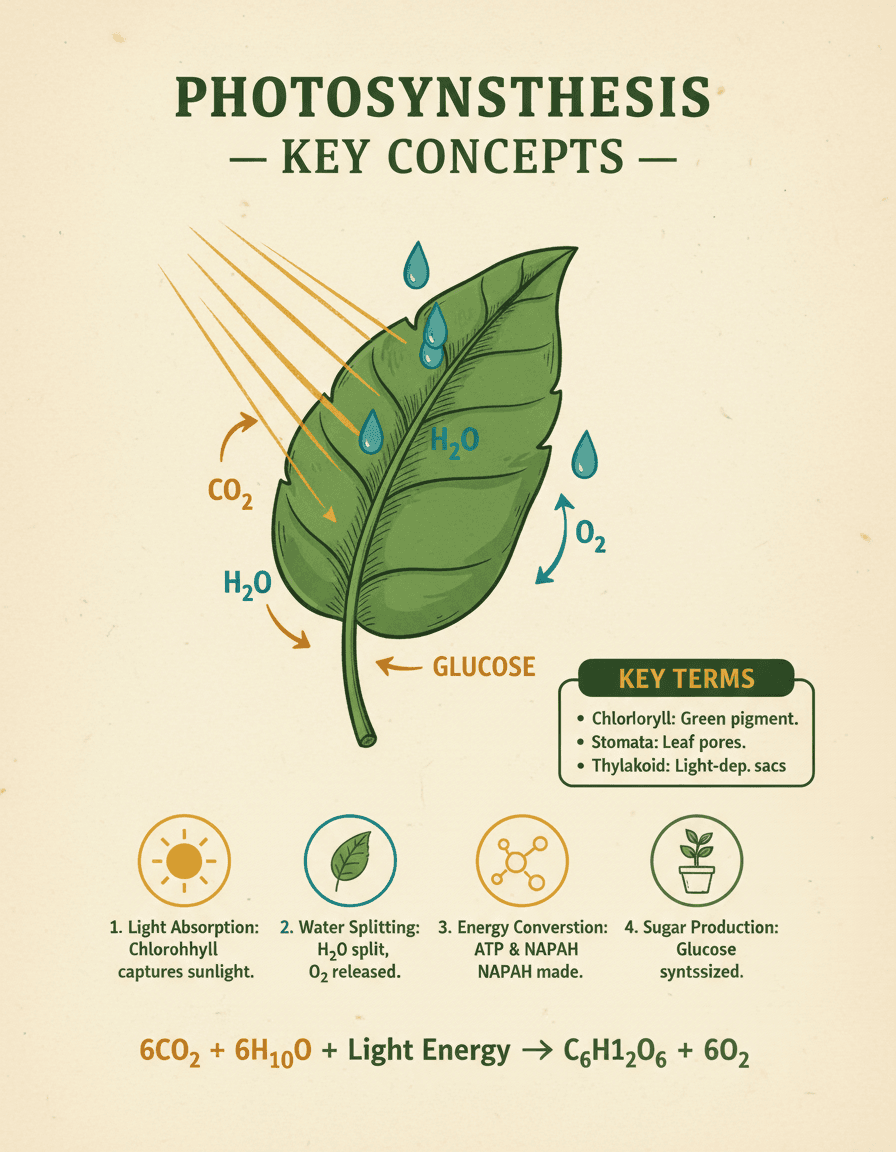
- Turn lecture notes into a study guide infographic for exam prep.
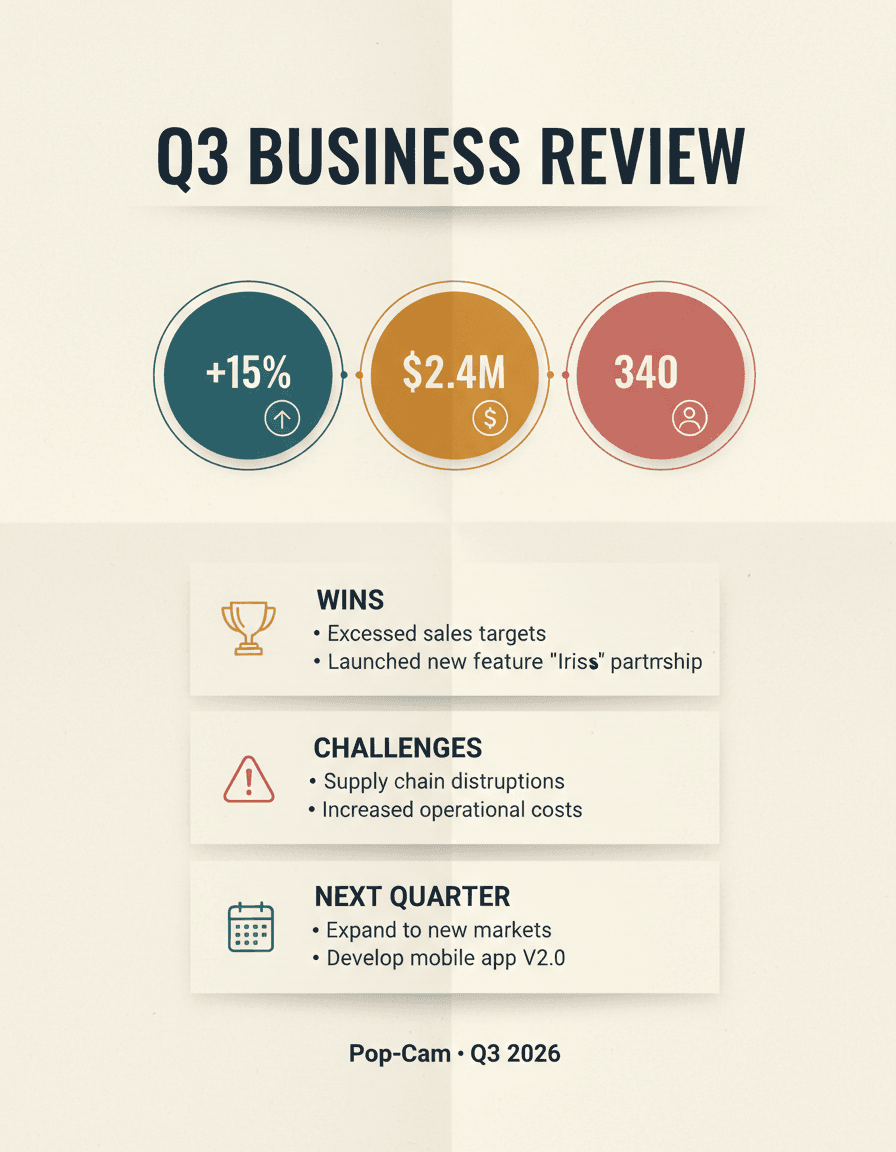
- Repurpose a quarterly review into a LinkedIn-ready visual.
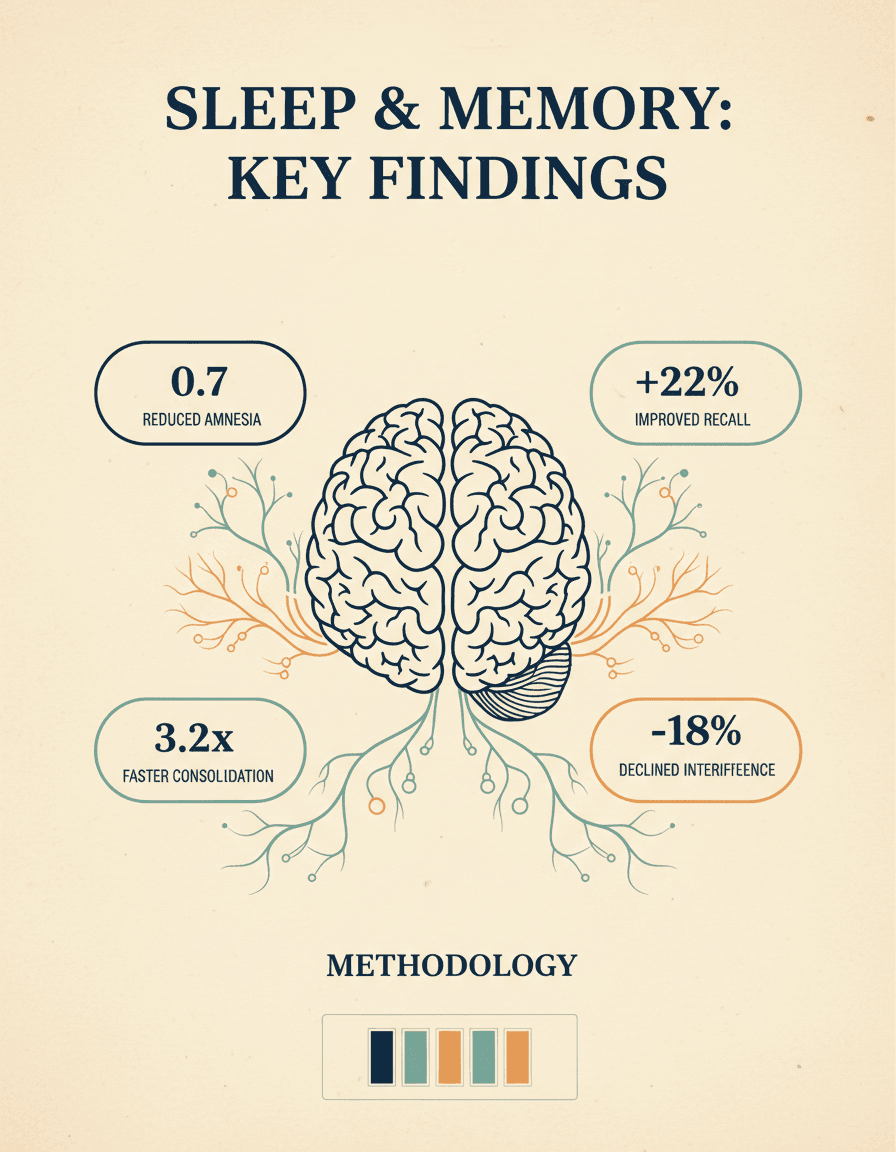
- Distill a research paper into a one-page visual abstract.
- Convert a podcast outline or YouTube script into a thumbnail-ready summary.
How AI infographic generation works
Behind the scenes, the AI infographic generator does three jobs at once. First, it parses your notes and identifies structure — the implicit headlines, sub-points, numbers, and supporting details. Second, it selects an appropriate visual hierarchy: a one-headline format for an executive summary, a stepped layout for a process, a comparison split for a versus-style topic. Third, it renders the final image with a coordinated color palette, iconography, and typography sized for legibility. The whole pipeline runs in under a minute and outputs a high-resolution PNG you can drop into Slides, Notion, Slack, or print at A4.
Best practices for visual note-taking
You will get sharper infographics from cleaner input. A few tips:
- Lead with a clear topic line. The first sentence usually becomes the headline of the infographic.
- Use short fragments, not paragraphs. Bullet-style input (“Q3 revenue $2.4M, +15% YoY, 340 new customers”) renders cleaner than prose.
- Include numbers and percentages. Numerical data gets visually highlighted automatically.
- Stay under 1,500 characters for one-page outputs. The tool supports up to 5,000 characters, but tighter input gives tighter visuals.
- Group related ideas. Keep facts about the same topic adjacent in the input so the AI can cluster them visually.
AI infographic generator from PDF, text, or notes
Have a PDF or a long document? Copy the relevant excerpt and paste it into the input box — the free tool accepts any plain text up to 5,000 characters and works with English, Spanish, French, German, Japanese, Chinese, and other major languages. For larger documents, brand colors, custom prompts, and unlimited generations, Pop-Cam credit packs start at $6 for 24 generations and unlock the full Pop-Cam editor.