 By Derek Sandler
Graphic Design without designers
Gone are the days where we need to hire an illustrator to make infographics. Gone are the days when graphic design is gatekept by those who mastered Adobe tools.
Thanks to AI, anyone can now create high-quality visuals—from infographics to social media posts—in seconds. And one of the most powerful tools leading this creative revolution is ChatGPT’s image generation capability, combined with tools like Pop-Cam that turn photos into infographic-style illustrations with just a few clicks.
Instead of writing the prompt to ChatGPT, Pop-cam makes infographic image instantly, suitable for creating fun and colorful infographics like these:
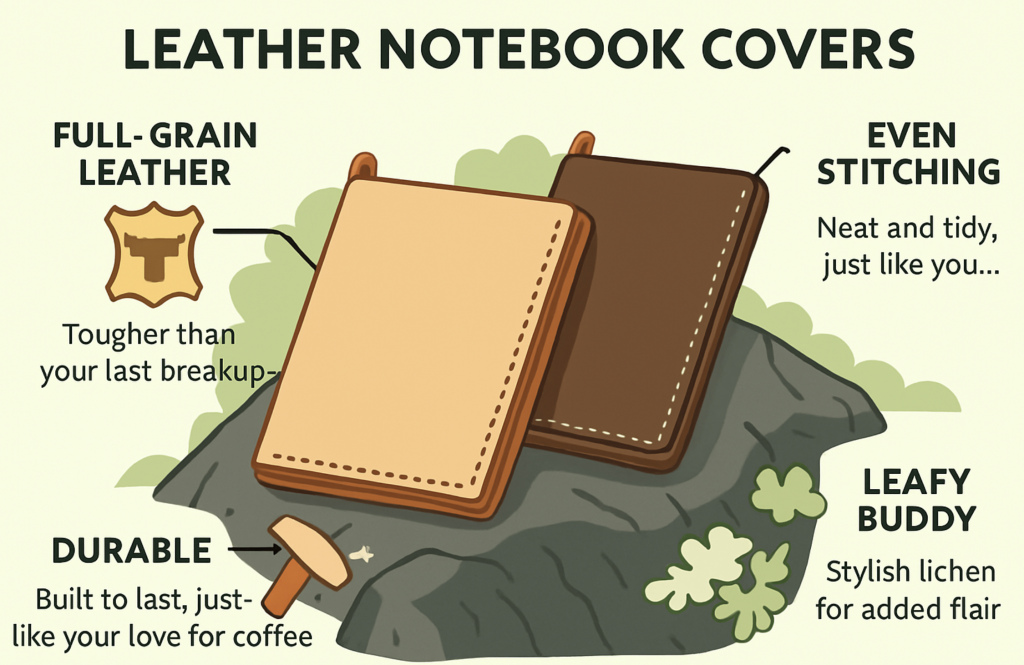
In this article, we’ll walk you through an AI workflow:
- Use AI generation tool like pop-cam to generate infographic framework
- Use Modern Editing software like Figma to quickly annotate
How to does Pop-cam work?
Pop-cam works using OpenAI’s image-generation diffusion-based model to produce consistent image output. The output are professionally drawn AI infographics which is instantly usable. In case you want to use another tool such as Chatgpt image generation, here is a prompting guide.
Note: the text on the model may product some Artifact. This guide will teach you how to fix them.
Step by Step Guide for an infographics with Pop-cam and Figma
- Get a photo. Here is a delicious looking meal
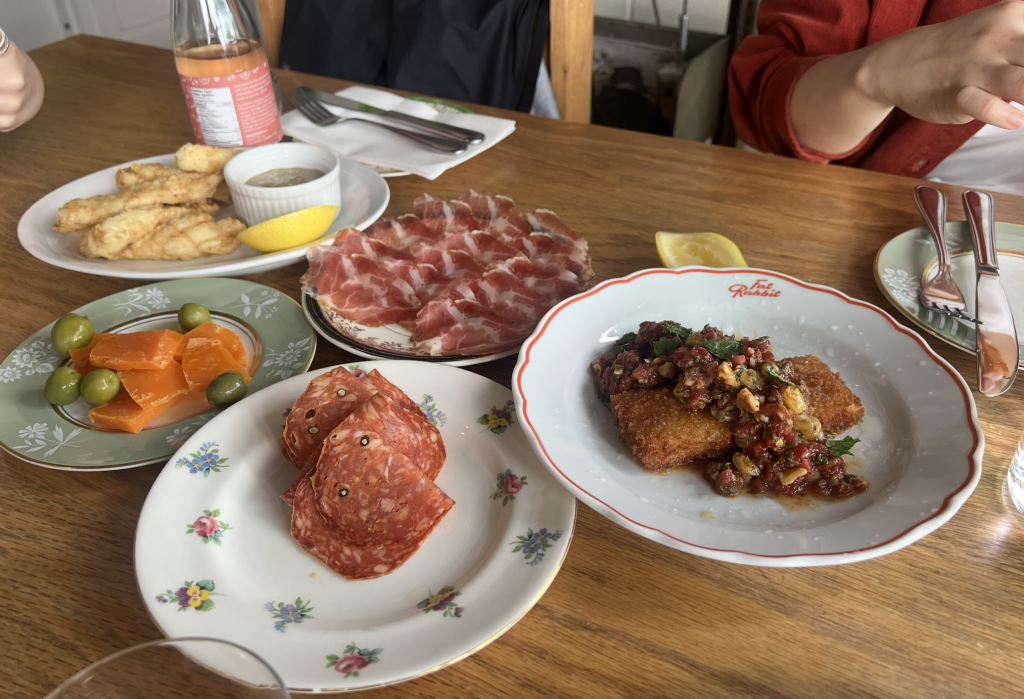
- Upload photo: Go to Pop-cam.com/app and upload your photo. Here are some tips.
- the photo does not need to be large, I typically use the mac’s screenshot to ensure small photo
- the image should be in jpg/webp/png format, Apple’s heic format takes a long time to upload.
- the AI is agnostic to image resolutions. Smaller images are easier to work with

- Generate infographic: Hit “Generate” and get your infographics on the app. Sometimes it takes 2-3 tries to get the style you want.

- Changing the text on Figma: The generated image looks good, but we might want to change some text on the image for example, some description needs to change.

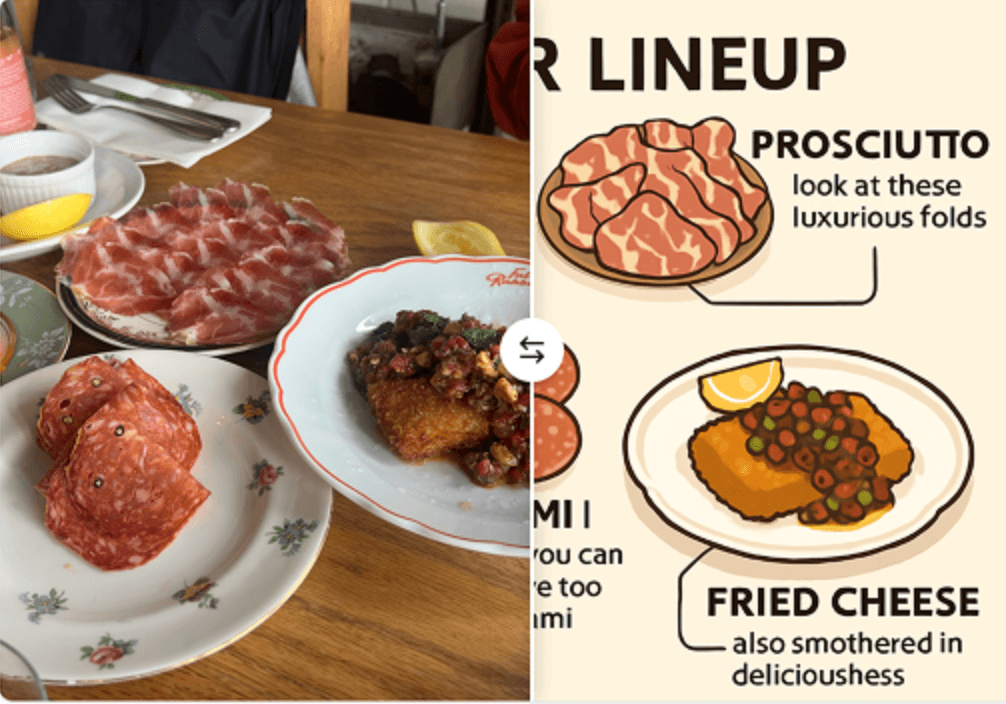
- Importing to Figma: Unfortunately, there are no AI app that supports native annotation fix. So we will use Figma. Download and Copy and Paste the image to a figma drawing board. Next, we will use the text tool to edit the annotation. Looks the the AI generated “SALAMI” is spelled wrong


- Adding New Text: Using the text tool to match the font and the color of the text. However, the background of the text is transparent. You would press shift+A on Mac & Windows to make the text into auto-Layout.


The blue “Frame 136” indicates that auto-layout has been created.

- Matching Text Background: Now you can pick the fill color to match the background. AI generated images are usually easy to match.

- Export: After editing, press Ctrl+G to group. And the image is ready to be export into format of your choice. Figma Supports PDF, JPG and other major file formats.

- I was able to finish this inforgrahic and use it on my social media or menu. There is no copy-right issue as well as these generated images are all custom.
How to Prompt AI for Better Designs
Crafting the right prompt is the key to good AI-generated images. Here’s a simple framework:
1. Subject: What is the image about?
e.g., “woman with glasses drinking coffee”
2. Style: Cartoon, minimalist, vaporwave, 3D render?
e.g., “infographic style, clean lines, modern look”
3. Color palette: Bright, muted, neon, pastels
e.g., “soft pink and teal tones”
4. Layout: Infographic, poster, square for Instagram
e.g., “top-bottom layout with callout lines and icons”
5. Mood or Use Case: Cute, professional, scientific, playful
e.g., “cute and friendly for a social media profile banner”
Use Cases: From Memes to Marketing
- Instagram Infographics – Explain concepts in a scroll-stopping way
- YouTube Thumbnails – Make engaging click-worthy visuals
- Pitch Decks – Use clean icons and concept illustrations
- E-commerce Banners – Stylize product photos with a branded vibe
- Blog Headers – Generate unique illustrations for SEO posts
Want to try? Upload a selfie to
Try AI Design Today
With tools like ChatGPT and Pop-Cam, you no longer need to spend hours—or dollars—on graphic design. Whether you’re a student, influencer, startup founder, or meme lord, AI gives you the power to create bold, beautiful visuals instantly.
✨ Try it now at Pop-Cam.com — it’s free, fast, and fun.
Meta Title:
AI Graphic Design create infographics in seconds
Meta Description:
Discover how to use workflow that uses Pop-Cam AI and Figma for fast, affordable, and creative AI graphic design. Learn prompt tips, tools, and use cases to make infographics in miniutes.